Getting started on PlayUs
This page explains how to
Registration
It is really easy to get registered with us, simply fill out the registration form on our homepage.
Give us some time we will send you a verification email which will lead you through the New user setup.
New user setup
Fill out the registration form on our homepage and we will contact you to set up your team/s. You will need the team name e.g. U16 Camogie or Junior 1 Hurling etc. We will also need an email address for the person that will be using Play Us on behalf of that team.
How to add teams
Scroll down to the bottom of your admin panel.
Select the age and
grade of the team
you want to add.
Choose the code,
camogie, football,
hurling or ladies
football.
Enter the number
of players in the
panel (approximately).
By clicking on the plus sign you can add as many teams as you like, after you have inputted the information click on update. Once you have your teams selected, you can give users access to other teams in your club.
How to assign coaches to teams
Simply go to your dashboard which is the green box on the top left corner of your screen. You will notice that there are four icons here which cover your
profile, games associated with your club, coaches and password.
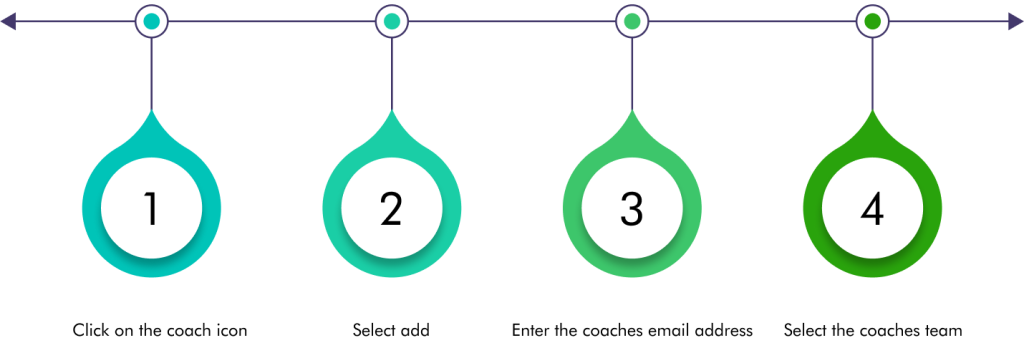
Click on “save”. This will generate an automatic email to the coach allowing them to set up a password to access PlayUs
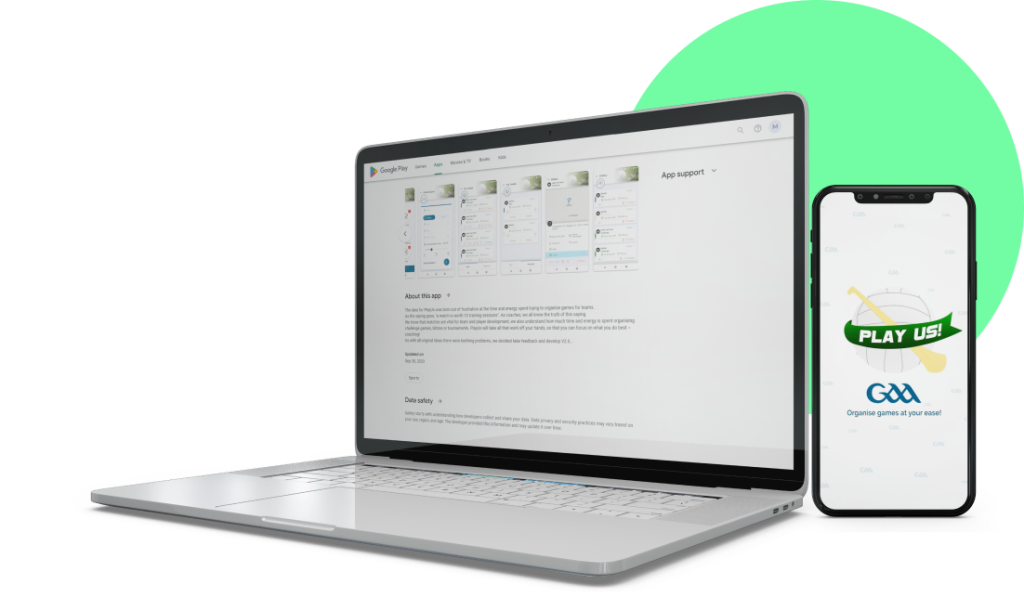
Downloading our app
Open your designated app-store on your mobile phone.
Enter ‘PlayUs GAA’ in the search bar
Select the ‘PlayUs GAA’ app with the official PlayUs logo.
To download the app to your mobile device, click the ‘Install’ or ‘Get’ button.
The App will now download onto your mobile device and can be used as
soon as registration is successfully completed.


How to create a game
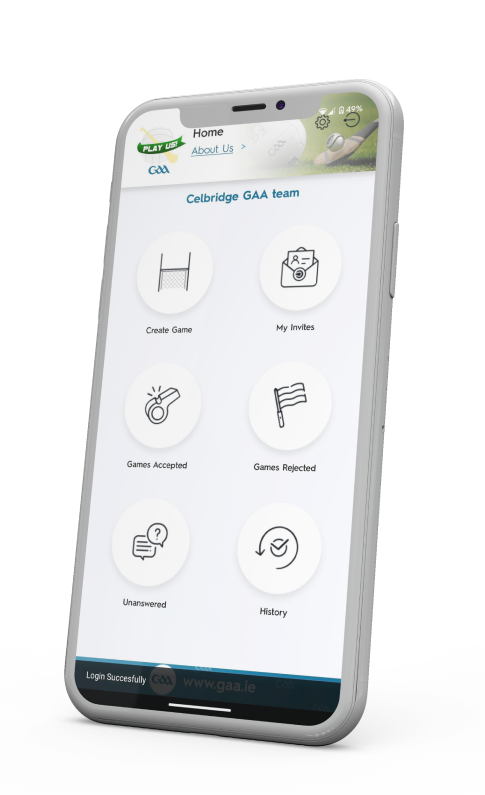
Once you login on your mobile phone you will land on your home page.
Once you click on the arrow in the blue circle, a message will appear on the screen which confirms how many teams have been invited within the area covered by the game invitation.